Bulk edit flights in Wader when the same fix belongs on many sectors: an import that logged you as SIC after your command upgrade, the wrong aircraft type on a whole season, or IFR flights that came in as VFR. You tick the flights, pick a smart edit or change any field yourself, check your new totals and save. No more opening 300 flights one by one.
In short: Bulk edit on the Wader web app (PRO) has two kinds of tool: smart edits, listed under Recalculate, do the common fixes for you and work out the related times correctly, and Edit fields lets you change any field on every flight you ticked. Either way you see your totals before and after, and nothing is saved until you confirm. Signed flights never change.
Smart edits and Edit fields
Smart edits are the tools under Recalculate in the Bulk edit workspace. Each one does a common job and fills in the times that go with it, so your totals stay right:
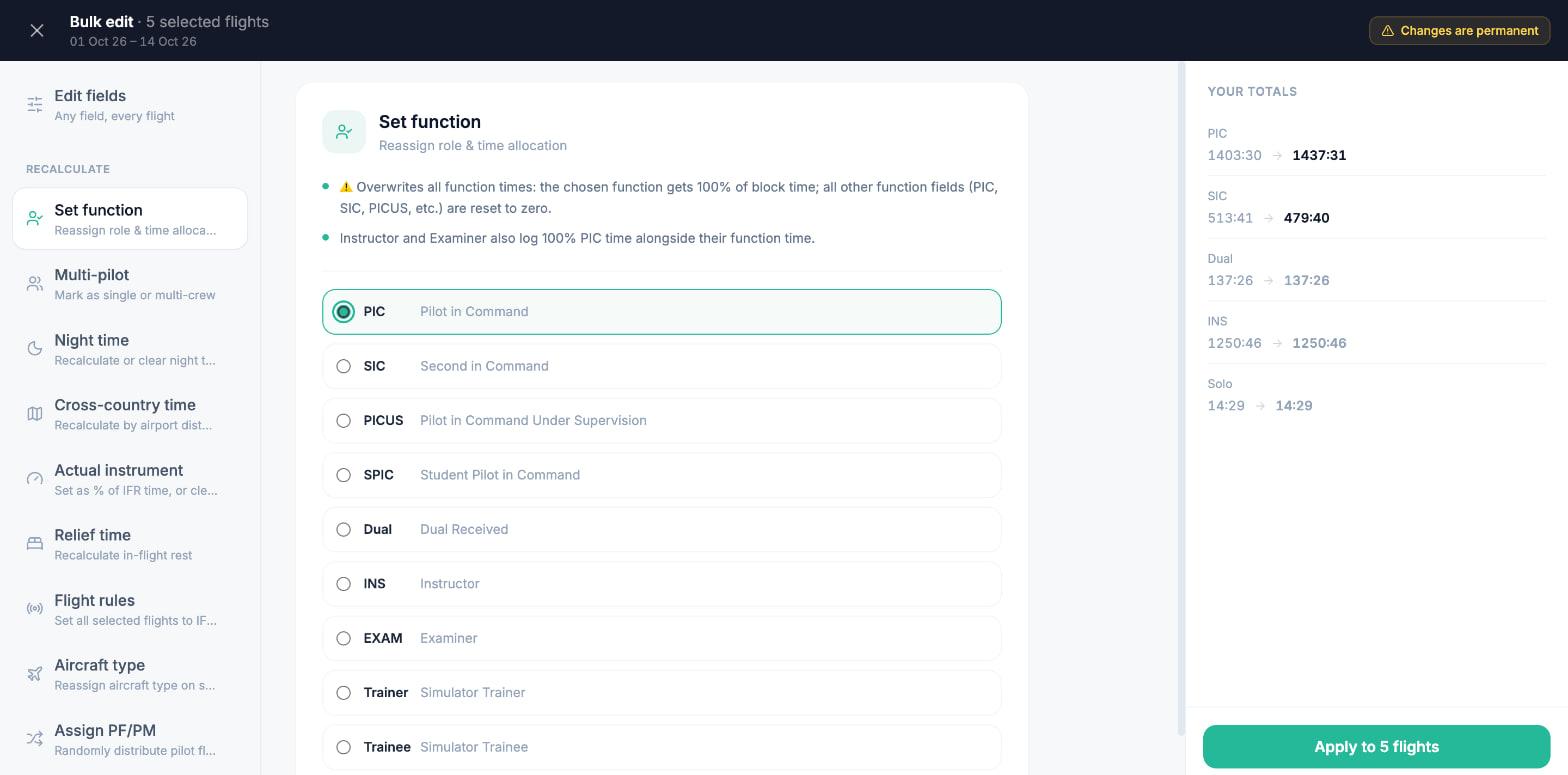
- Set function: gives the function you choose, for example PIC, the whole block time and sets the other function times (SIC, PICUS and so on) to zero. Instructor and Examiner also log the block as PIC.
- Aircraft type: puts the type you choose on every flight, with its ICAO code, manufacturer and model.
- Flight rules: IFR sets IFR time to the whole block; VFR sets it to zero.
- Night time: works night out again from each flight's airports and times, under the rules you choose, or clears it. See how night time is calculated.
- Cross-country time: the whole block for flights between airports more than 50 NM apart, zero for shorter ones.
- Actual instrument: a percentage of each flight's IFR time, or cleared.
- Relief time: in-flight rest from the crew count (3 pilots 33%, 4 or more 50%) or the block time (9 to 12 hours 33%, over 12 hours 50%).
- Multi-pilot marks the flights single or multi-pilot, and Assign PF/PM marks a share of them, picked at random, as pilot flying for takeoff, landing or both.
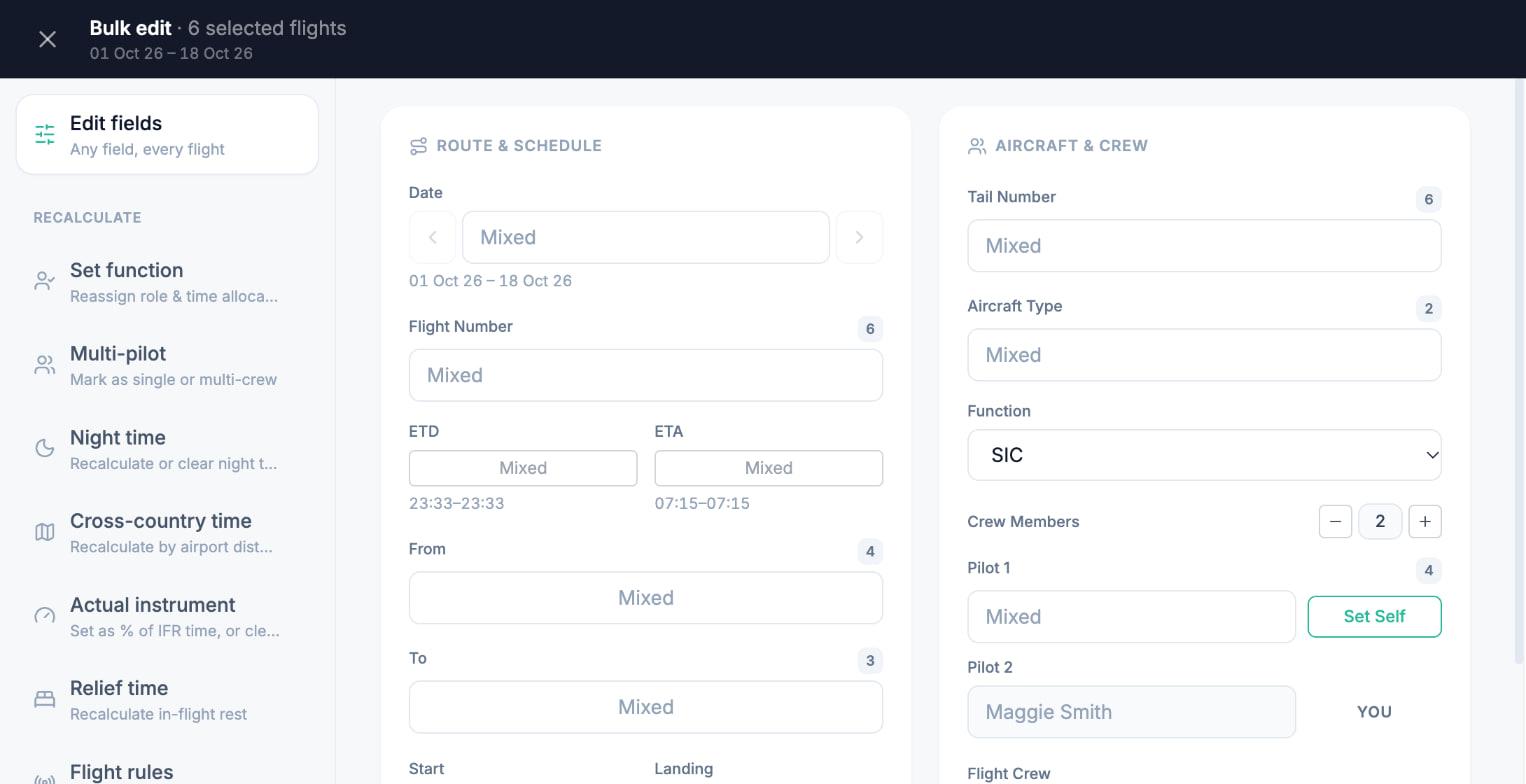
Edit fields is the flight form for all the flights you ticked, with complete freedom: tail number, crew, approach, times, remarks or any other field. Use it for anything no smart edit covers. Times that depend on what you change are worked out again on each flight. If a smart edit does the job, use the smart edit.
When you need Bulk edit
- SIC after your upgrade, or training that should read dual: Set function. Function codes explained.
- The wrong aircraft on a season: Aircraft type.
- Flights that came in as VFR: Flight rules.
- Night time missing after an import: Night time.
- The same remark on many flights, a missing tail number or a crew name: Edit fields.
Fixing these before a licence application or an airline interview matters: wrong totals are among the logbook red flags an assessor spots first.
How to bulk edit flights in Wader
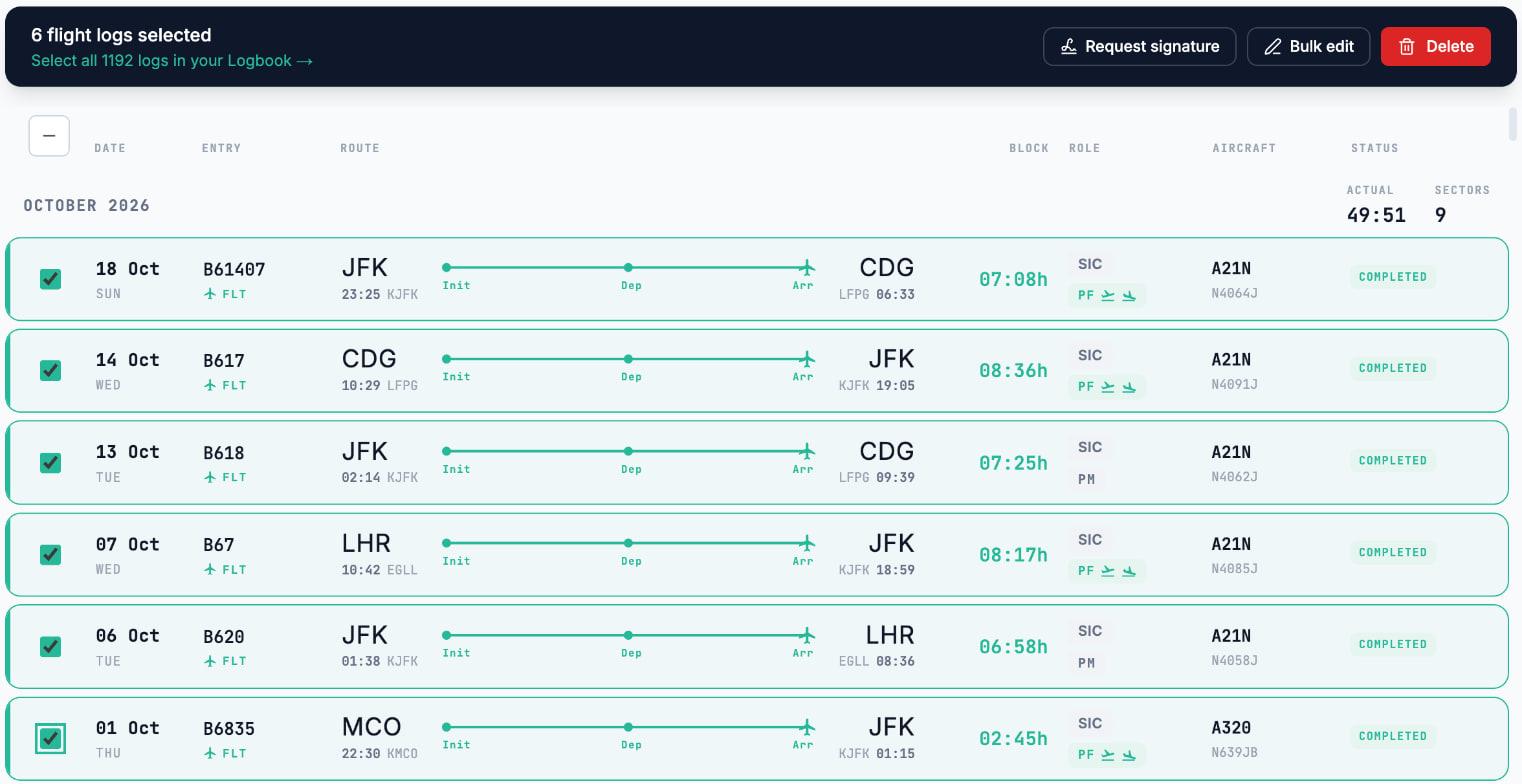
- Tick the flights. Sign in at logbook.waderaviation.com and open Logbook. Use the search box (airport, flight number, pilot name or tail number) or Filters to find the flights, then tick two or more. To take every flight, click Select all. Then click Bulk edit in the bar at the top.
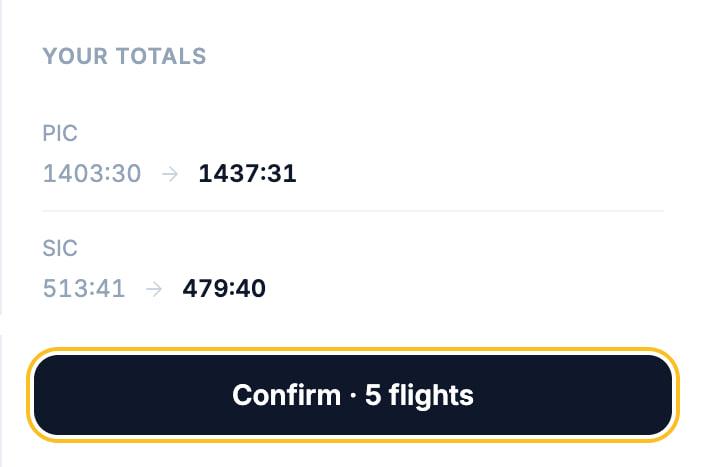
- Pick a smart edit. Bulk edit opens full screen. The smart edits are on the left under Recalculate. To fix the function, click Set function and choose PIC. The panel on the right shows your totals before and after: here PIC goes up and SIC comes down by the same time.
- Or open Edit fields. For anything else, click Edit fields at the top of the list. You get the same form you know from a single flight. Where every flight has the same value, you see it. Where they differ, the field says Mixed. Fields you leave alone stay as they are on each flight.
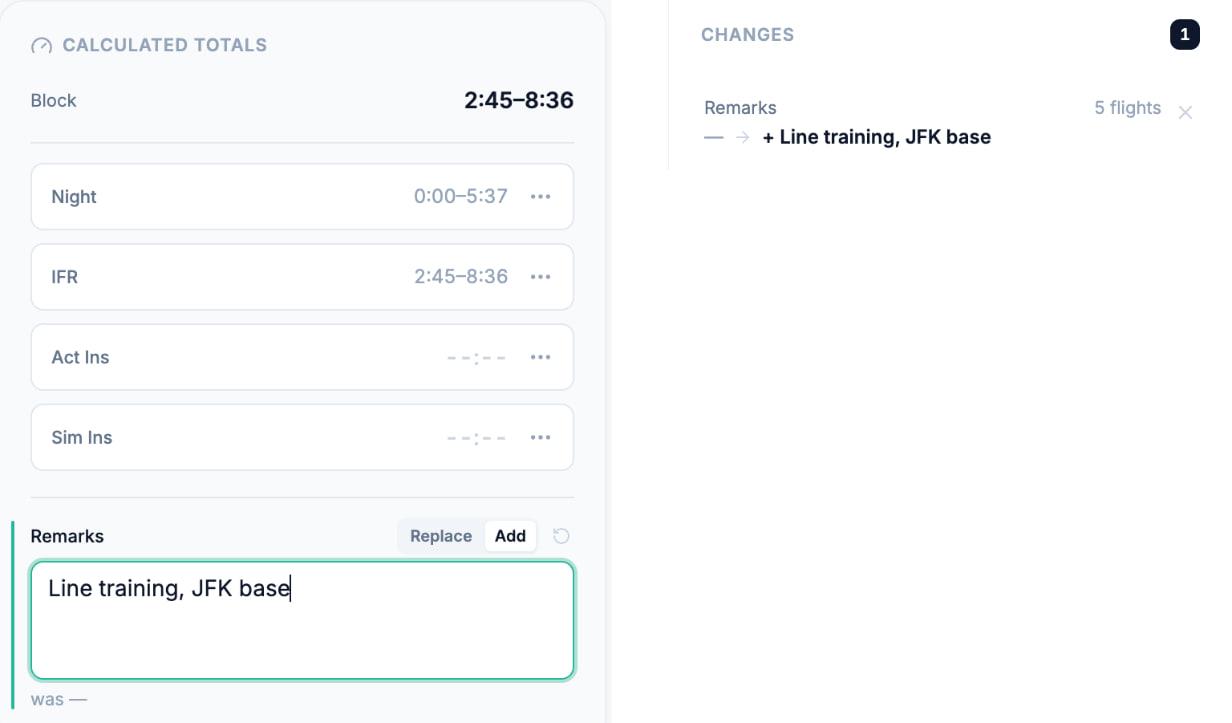
- Change only what is wrong. For example, add one remark to every flight: choose Add next to Remarks and type it. Replace would write over the old remarks instead. The Changes list on the right shows what will change and on how many flights.
- Apply or save, then confirm. Click Apply for a smart edit or Save for Edit fields, check the numbers one last time, then click Confirm. Your logbook shows the new values at once.
What Bulk edit never touches
- Signed flights. Flights signed by a captain or instructor, and flights waiting for a signature, stay exactly as they are. More on logbook signatures.
- Simulator sessions and previous experience. They are left out of the selection.
- Impossible times. In Edit fields, a flight that would end up with more time than its block, or times that cannot be right, is left out and listed with the reason before you save. You fix those few by hand; the rest are saved.
There is no undo. Changes are permanent, which is why Wader shows your totals before and after and asks you to confirm. Before a big change, export a PDF or CSV of your logbook from Export, so you have a copy.
On the web, with PRO
Bulk edit is part of PRO and lives on the Wader web app, so it works on any computer. In the mobile app you can select many flights to delete them; to change many at once, use the web. Every flight you fix syncs to your phone. The help centre has the full detail.
Bulk edit flights: FAQ
What is the difference between smart edits and Edit fields?
Smart edits, listed under Recalculate, do one common job for you, such as setting the function, the aircraft type or night time, and fill in the related times correctly. Edit fields is the flight form for all the flights you ticked, for anything else: tail number, crew, remarks or any other field.
Is Bulk edit free?
Bulk edit is part of Wader PRO. On the FREE plan you can still tick flights, see the Bulk edit button with its PRO badge and edit flights one at a time. Logging stays unlimited on FREE. See what FREE includes and what PRO adds.
Can I bulk edit flights in the mobile app?
Not today. Bulk edit is on the Wader web app at logbook.waderaviation.com, which works in any browser on a computer or tablet. In the iPhone and Android app you can select many flights to delete them. Changes you make on the web sync to the app.
Can I undo a bulk edit?
No. Changes are permanent once you confirm. Before saving, Wader shows your totals before and after and asks you to confirm. For a large change, export a PDF or CSV of your logbook first, so you have a copy of how it was.
Will Bulk edit change my signed flights?
No. Flights that a captain or instructor has signed, and flights waiting for a signature, are never changed by Bulk edit. Simulator sessions and previous experience are left out too. The signature certifies those entries as they were signed, so they keep their values.
Does Bulk edit recalculate night and IFR time?
Yes. The Night time smart edit works night out again from each flight's airports and times, and Flight rules sets IFR time to the whole block for IFR flights. In Edit fields, times that depend on your change, such as night or IFR, are worked out again on each flight.
Fix your logbook this week
- On PRO: open your logbook at logbook.waderaviation.com, tick the flights and click Bulk edit.
- Not on PRO yet: Bulk edit, airline imports and the signed logbook PDF are in PRO. Upgrade from your Profile at logbook.waderaviation.com.
- New to Wader: 18,000 pilots have logged over 7.5 million flights with Wader. Download Wader.
Blue skies,
Antonio Ferraz, B777 Training Captain, CEO of Wader